
How to Add an M3U Playlist to Vanto Player
Vanto Player does not provide any media content itself. You must provide your own M3U playlist from your service provider. This guide shows you how to link that playlist to your app.
Step-by-Step Instructions
- Launch Vanto Player: Open Vanto Player on your TV or mobile device. On the main screen, you will be prompted to add a new user or playlist.
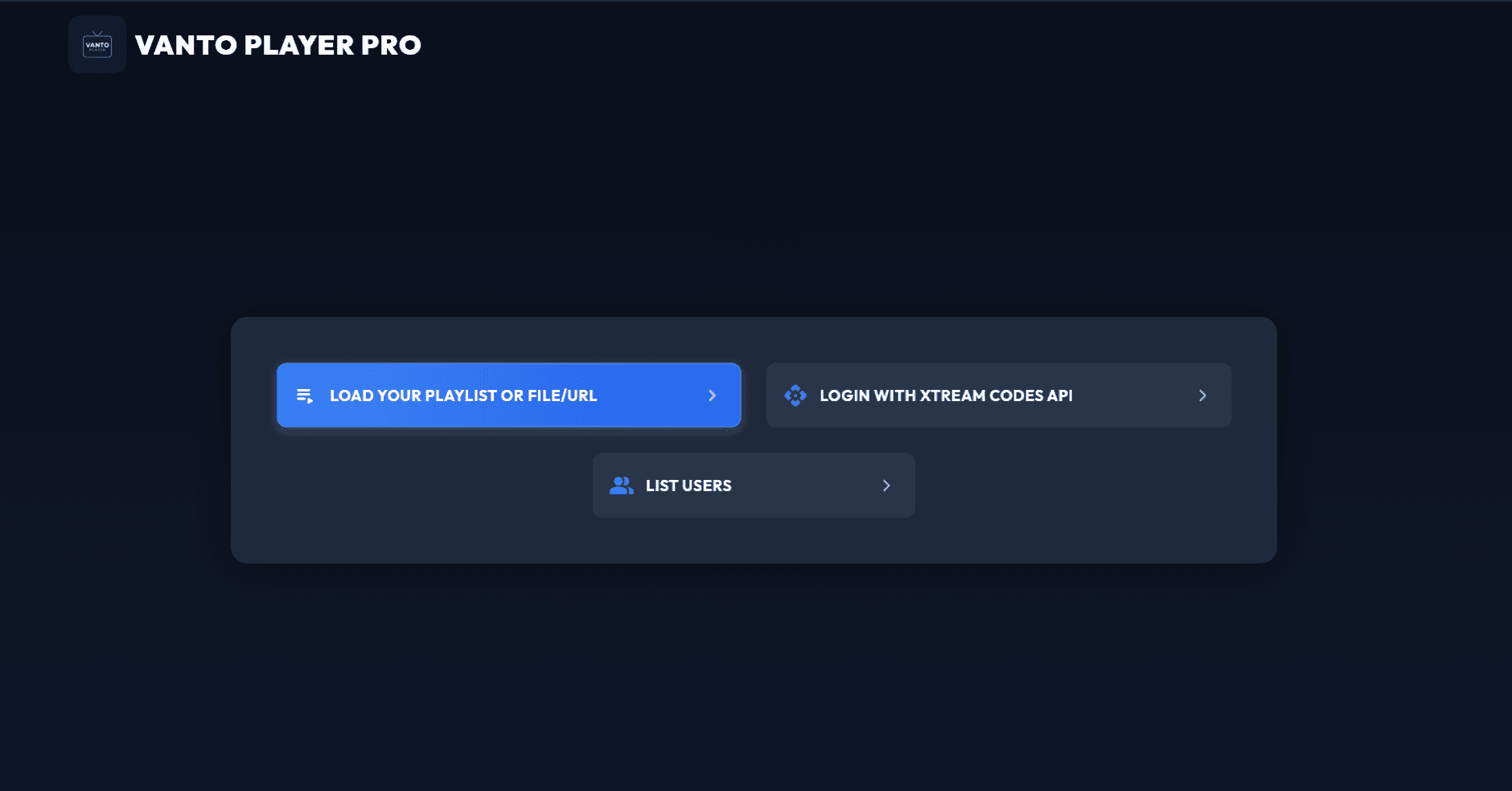
- Select Login Method: Choose either Xtream Codes API (recommended for best performance) or Load Your Playlist (M3U URL).
- Enter Playlist Details:
- Any Name: Give it a recognizable name (e.g., "My Live TV").
- Xtream Codes: Enter your Username, Password, and the Server URL provided by your IPTV service.
- M3U URL: If you selected M3U, paste the full `.m3u` link provided by your IPTV service.
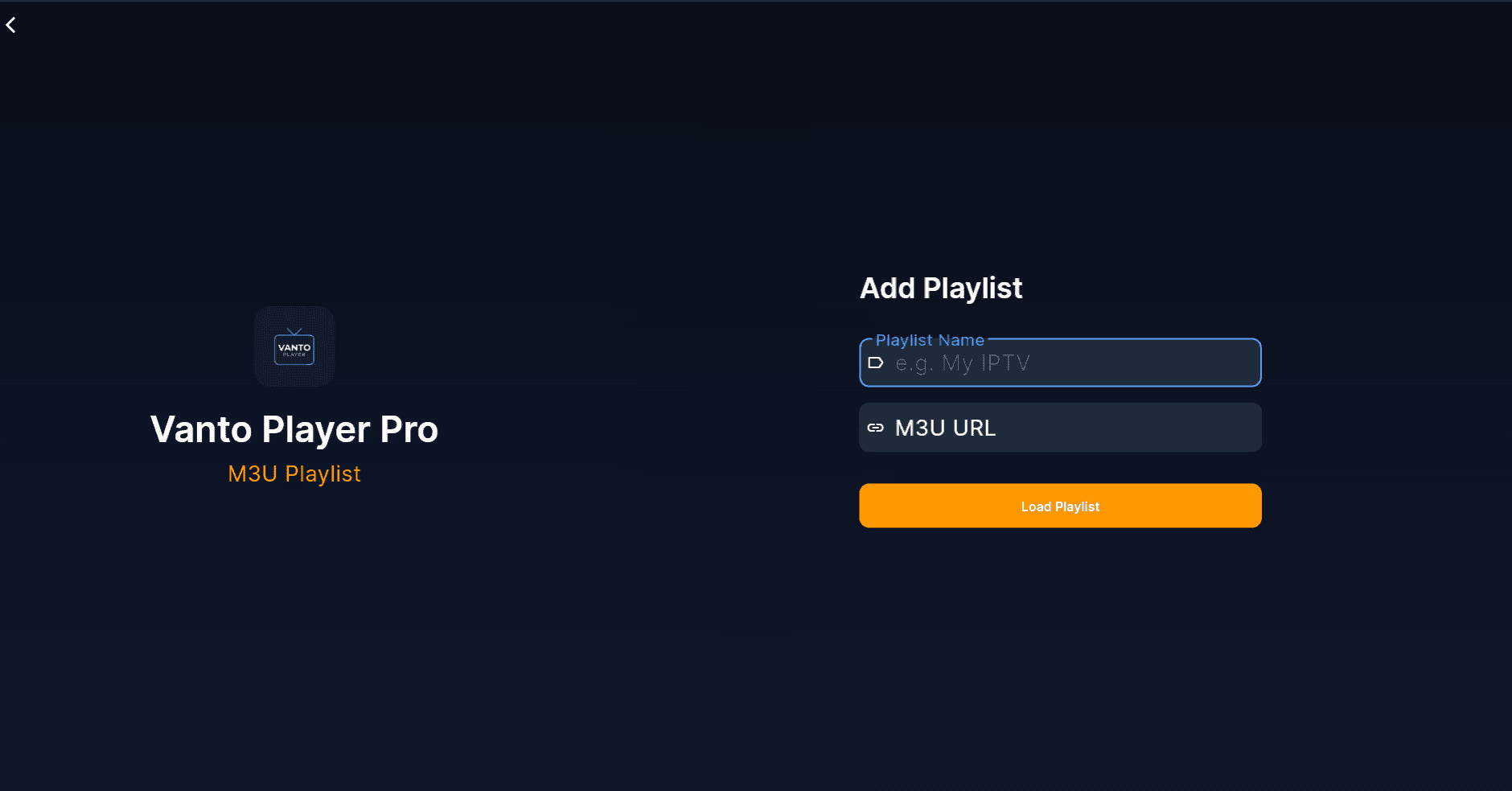
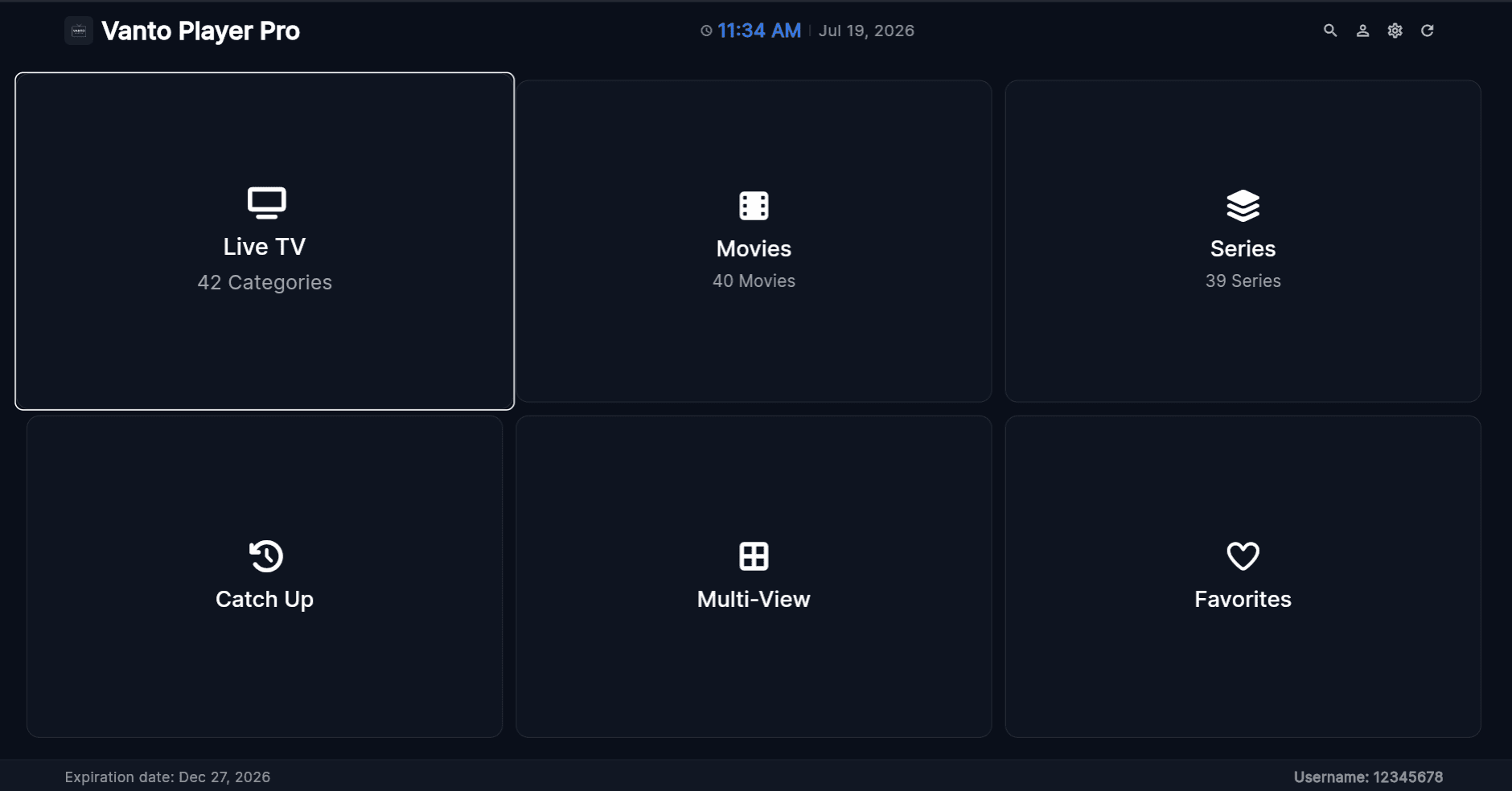
- Add User: Click the "Add User" or "Login" button. Vanto Player will instantly download and categorize your channels, movies, and series!
Related Guides & Resources
Samsung Smart TVHow to install Vanto Player on TizenLG webOSHow to install Vanto Player on LG TVsFirestick & Android TVHow to sideload the app via DownloaderAdd M3U PlaylistStep-by-step guide to adding channelsFix Playlist IssuesTroubleshooting buffering and loading errorsApp Feature GuideLearn how to use Live TV, VOD, and moreDownload Vanto PlayerGet the app for all your devices