
Vanto Player Setup Guide: Xtream Codes & M3U
Learn how to easily set up Vanto Player. Connect your IPTV service directly on your device using Xtream Codes API or M3U URLs.
Vanto Player Setup Guide: Xtream Codes API and M3U
Vanto Player is designed to be a premium, secure, and cross-platform media ecosystem. To keep your playlists secure and easy to manage, Vanto Player supports direct login right on your device.
If you have just downloaded Vanto Player and are stuck on the initial screen, you are in the right place. This guide will walk you through the setup process step-by-step.
Disclaimer: Setting up Vanto Player unlocks the software features of the media player. It does not provide any media, live channels, or VOD content. You must use your own IPTV service credentials.
Step 1: Launch the Application
When you launch Vanto Player for the first time on any new device (such as an Amazon Firestick, LG Smart TV, or Android phone), you will be greeted by the login screen.
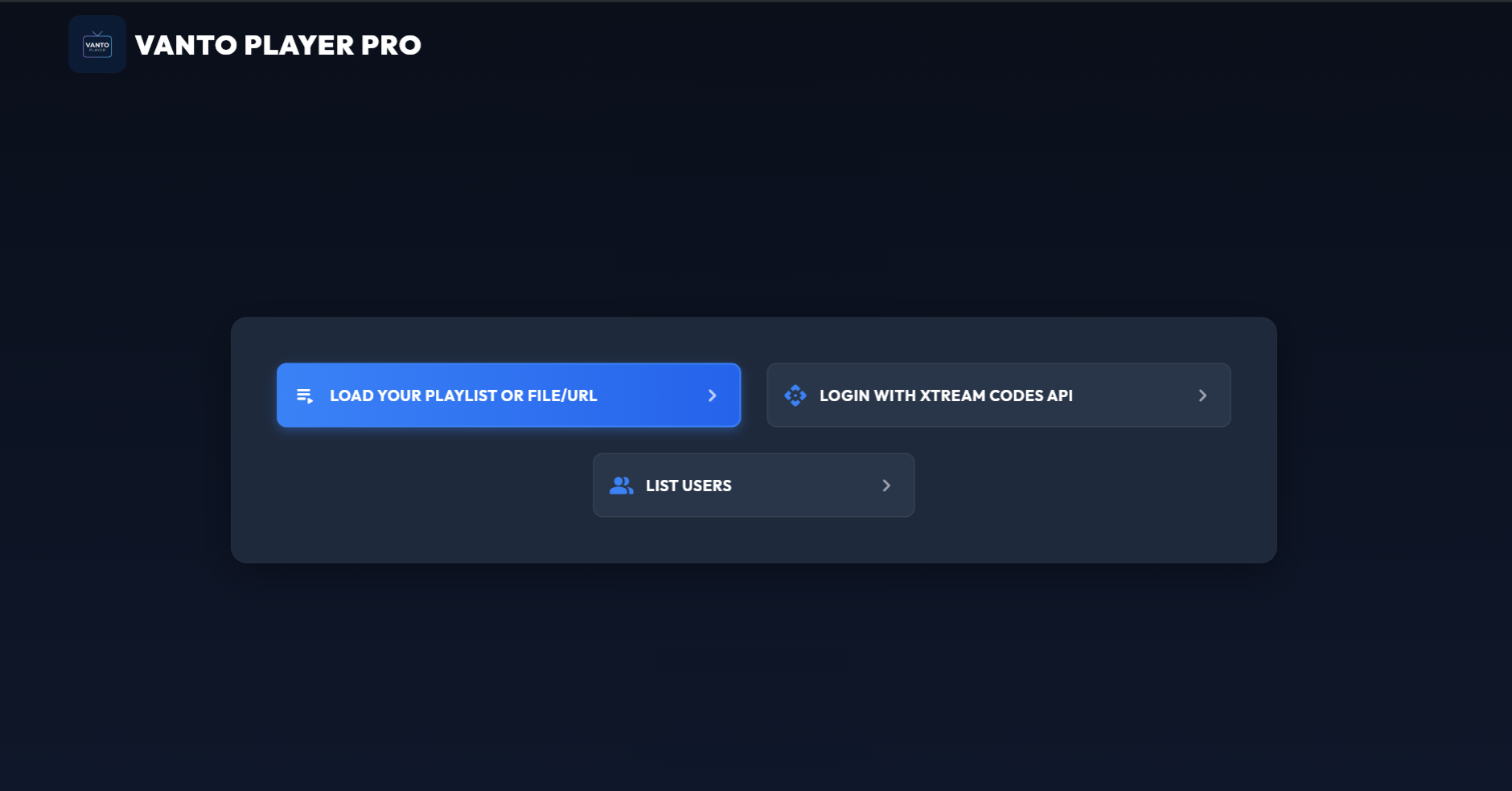
This screen gives you multiple options to connect your service. The two most common and reliable methods are [Xtream Codes API](/blog/what-is-xtream-codes-api) and M3U Playlist.
Step 2: Choose Your Login Method
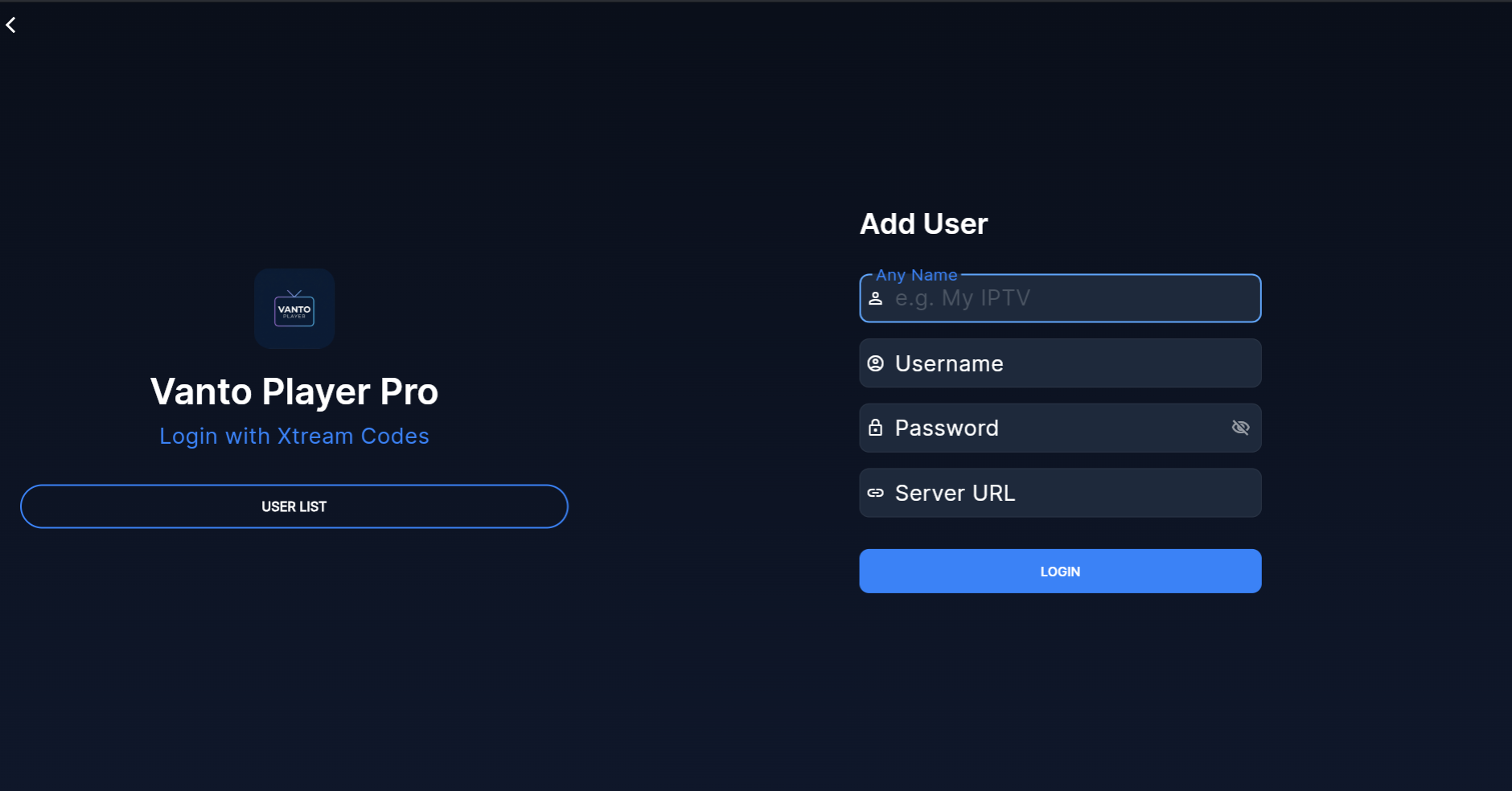
Method A: Xtream Codes API (Recommended) Xtream Codes is the industry standard. It is generally faster, organizes Live TV and VODs perfectly, and handles the EPG (TV Guide) automatically.
- Select Xtream Codes API.
- Enter any name for your playlist (e.g., "My TV").
- Enter your Username and Password.
- Enter the Server URL provided by your service.
Method B: M3U URL
If your provider only gave you a long URL link ending in .m3u or .m3u8, you will use this option.
- Select M3U Playlist.
- Enter a name for the playlist.
- Carefully type or paste the exact URL into the Playlist field.
Step 3: Login and Sync
Once you have entered your details, click the Add User or Login button.
The app will connect to your provider and begin downloading the channel list, movie posters, and series information. This process can take a few minutes depending on the size of the playlist.
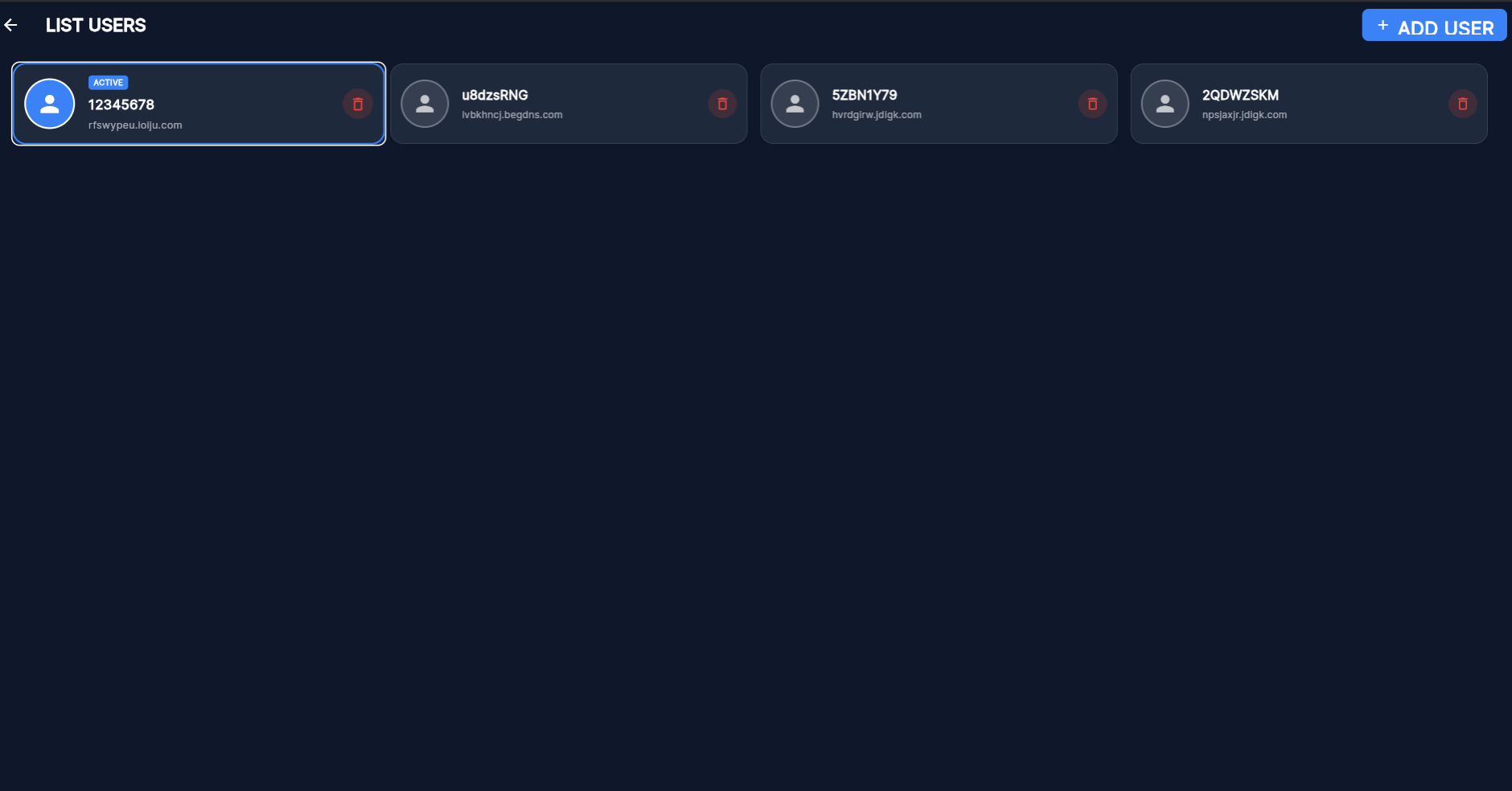
Once finished, you will see your profile. Select it to enter the Vanto Player dashboard!
Troubleshooting Common Errors
"Invalid Details or Login Failed" Double-check your typing. The most common mistake is confusing the letter 'O' with the number '0', or adding accidental spaces at the end of the Server URL. Ensure your subscription is active with your provider.
The App is Stuck Loading If your playlist is extremely large (e.g., hundreds of thousands of VODs), it may take longer to load the first time. Please be patient. If it hangs completely, restart the app and try again.
Frequently Asked Questions (FAQ)
Can I add multiple playlists? Yes, you can add multiple users or playlists and easily switch between them from the main menu.
Is my data secure? Yes, your login credentials are saved locally on your device and are used securely to authenticate directly with your content provider's server.
How do I delete my playlists if I sell my device? Simply navigate to the settings or user profiles page within the app, select the playlist you want to remove, and click "Delete User".
Ready to Try Vanto Player?
Experience the ultimate media player for your IPTV playlists. Download now and enjoy seamless 4K streaming.
Vanto Player Team
Streaming Technology Expert
With years of deep expertise in IPTV protocols, media encoding, and streaming applications, Vanto Player Team leads technical content at Vanto Player. They share advanced setup tutorials, performance optimization tips, and industry insights to help you build the ultimate home theater experience.