
How to Load an M3U Playlist into Vanto Player (Easy Guide)
Learn how to easily load and manage M3U and JSON playlists in Vanto Player. Follow this guide to sync your content across Android, iOS, and Smart TVs.
How to Load an M3U or JSON Playlist into Vanto Player
You've successfully downloaded Vanto Player, but when you open the app, the screen is empty. Don't worry—this is exactly how it is supposed to work! Vanto Player is a premium, blank-canvas media player. To start watching, you need to load your own M3U or JSON playlist.
This guide will show you how to securely upload your playlist via the web portal and sync it directly to your device, whether you are using Android, iOS, Windows, macOS, or a Smart TV.
Disclaimer: Vanto Player is a software application only. It does not host, provide, or sell any media content, channels, or subscriptions. Users are solely responsible for the content they upload.
What You Need Before You Start
Before uploading, ensure you have the following ready:
- Your Vanto Player Device Details: Open the Vanto Player app on your TV or mobile device. Note down the MAC Address and Device Key displayed on the screen.
- Your Playlist URL or File: You need an active M3U link (URL), an [Xtream Codes API](/blog/what-is-xtream-codes-api) login, or a local JSON/M3U file provided by your content provider.
Step-by-Step Playlist Upload Guide
The easiest way to manage your playlists is by using a web browser on your computer or smartphone, rather than trying to type long URLs using a TV remote.
1. Launch the Vanto Player App
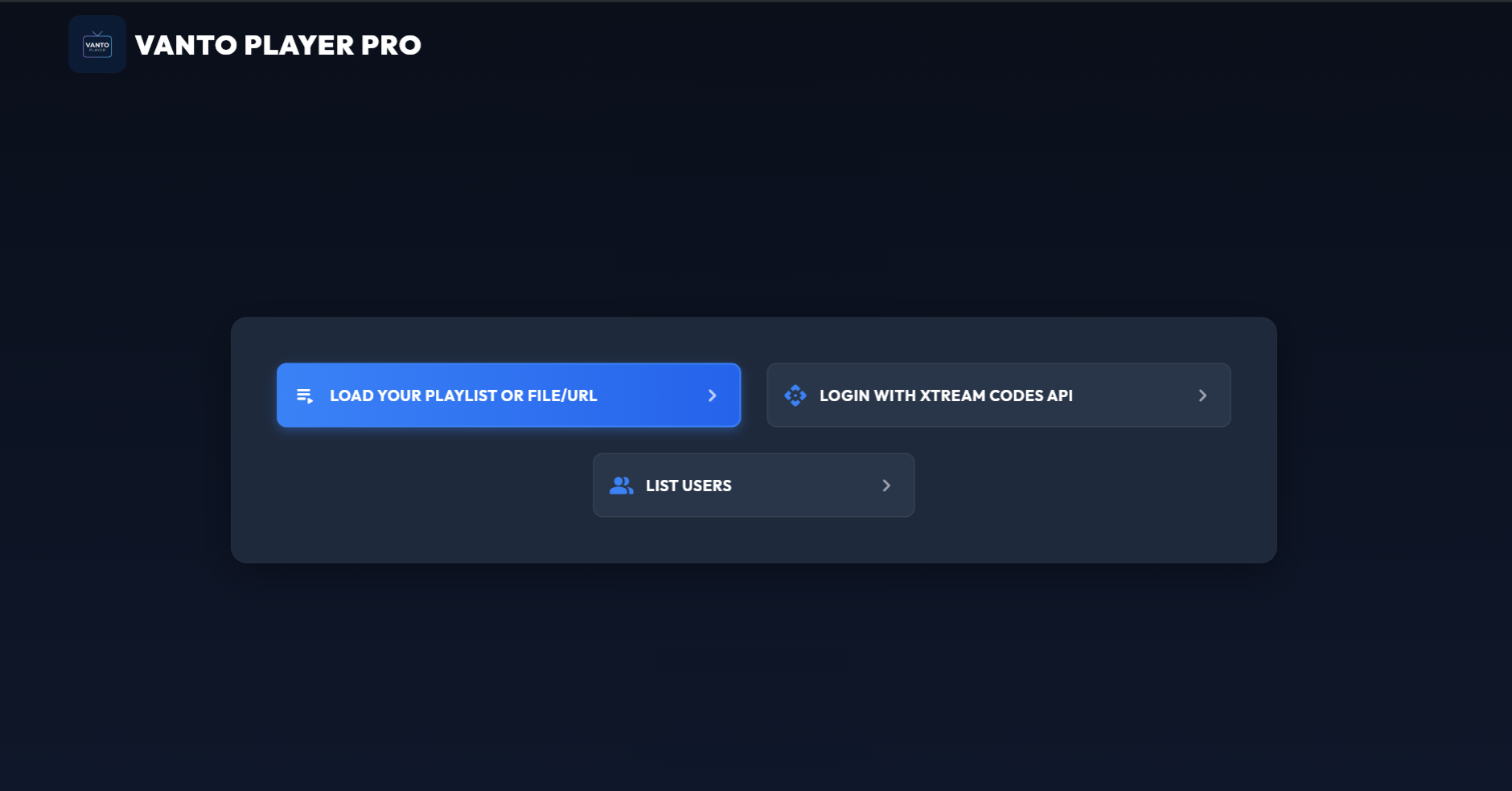
Open Vanto Player on your TV, computer, or smartphone. On the main screen, you will be prompted to add a new user or playlist.
2. Choose Your Login Method
You generally have two options to add your playlist:
- Xtream Codes API (Recommended): Enter the Username, Password, and Server URL provided by your service. This is the best method because it offers faster loading times, better VOD categorization, and a smoother EPG experience.
- M3U URL: Paste the dynamic M3U link provided by your service. This is a universal format that also updates automatically whenever your provider makes changes.
3. Enter Your Details
Select your preferred method and carefully enter the details.
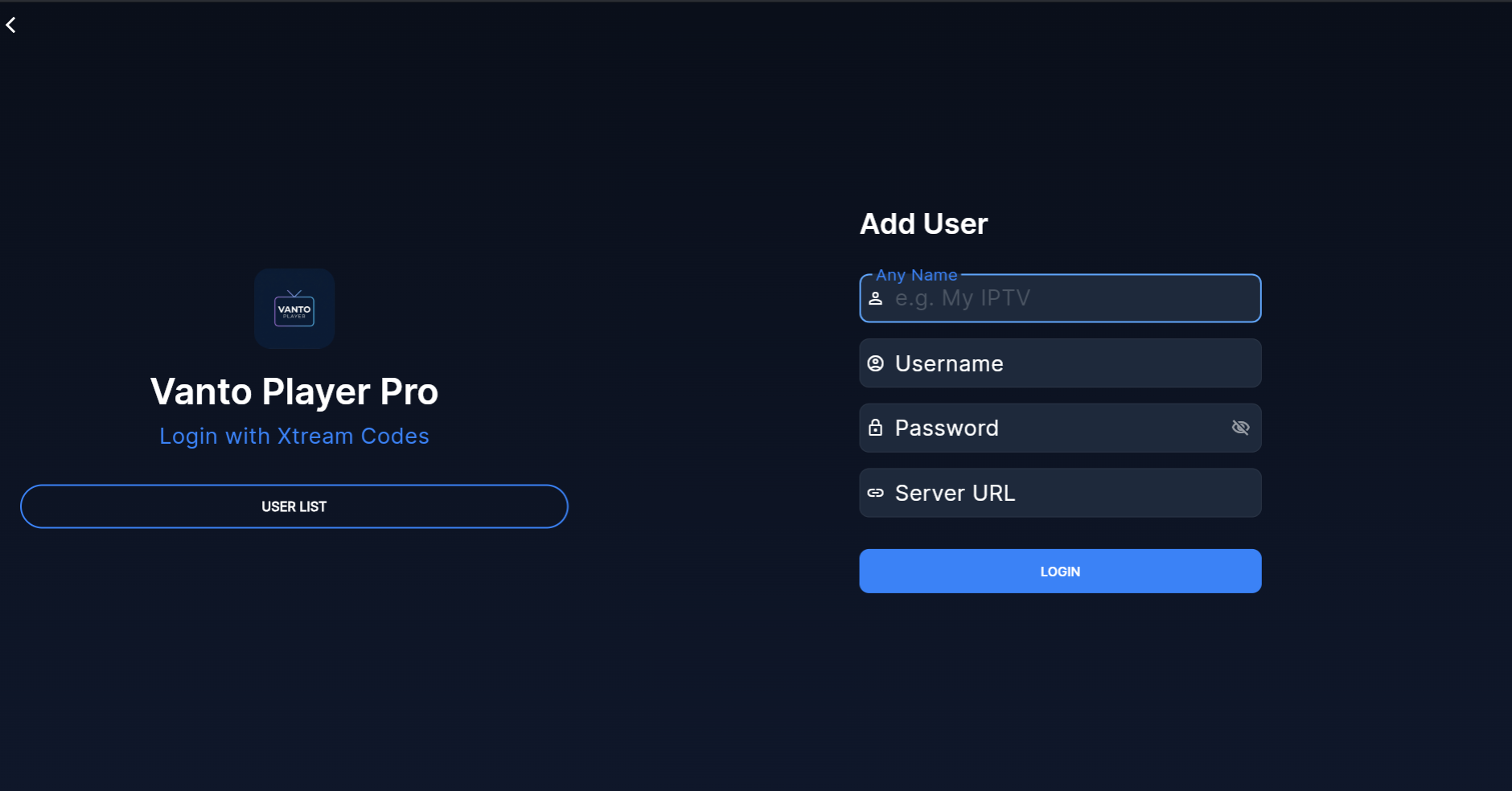
Give your playlist a recognizable name (e.g., "Sports Playlist" or "Main TV") so you can easily identify it if you add multiple playlists later.
4. Save and Sync
Click Add User or Login.
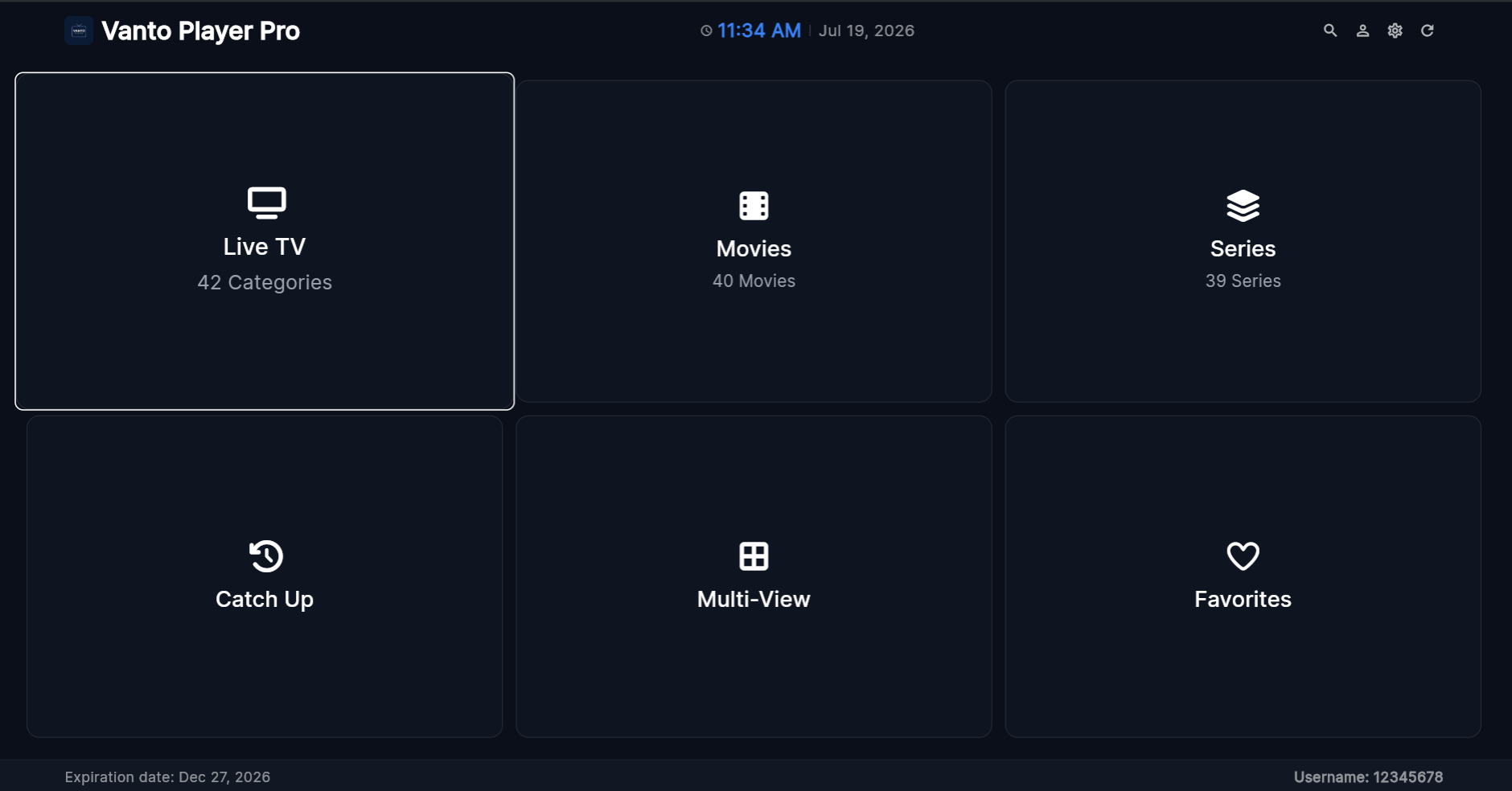
The app will connect to your provider's server, download your channels, and categorize your VODs. Depending on the size of the playlist, this may take a few moments. Once completed, you are ready to stream!
Managing Multiple Playlists
One of Vanto Player's best features is its ability to handle multiple playlists simultaneously. If you have different sources for sports, movies, and international channels, simply repeat the steps above to add multiple M3U links.
You can toggle between different playlists effortlessly from the Vanto Player main menu.
Frequently Asked Questions (FAQ)
Why is my M3U playlist failing to load? If your playlist fails to load, double-check that you copied the URL correctly without any accidental spaces. Also, ensure that your provider's server is currently online. If the issue persists, try pasting the M3U link directly into a web browser to see if it downloads a file; if it doesn't, the link is broken.
Can I upload an EPG (TV Guide) alongside my playlist? Yes. If your M3U link does not have an integrated guide, you can often add an XMLTV EPG URL in the same web portal where you added your playlist.
Is it better to use an M3U URL or an Xtream Codes login? Both work well in Vanto Player. Xtream Codes logins (Username, Password, Server URL) are often preferred for faster loading times and better VOD categorization, while M3U URLs are more universally compatible.
Ready to Try Vanto Player?
Experience the ultimate media player for your IPTV playlists. Download now and enjoy seamless 4K streaming.
Vanto Player Team
Streaming Technology Expert
With years of deep expertise in IPTV protocols, media encoding, and streaming applications, Vanto Player Team leads technical content at Vanto Player. They share advanced setup tutorials, performance optimization tips, and industry insights to help you build the ultimate home theater experience.